Getting Started in VS Code
 VS Code
The SheetXL extension (AI Spreadsheet on the Marketplace) turns VS Code into a spreadsheet
editor your AI agent can see. Open an
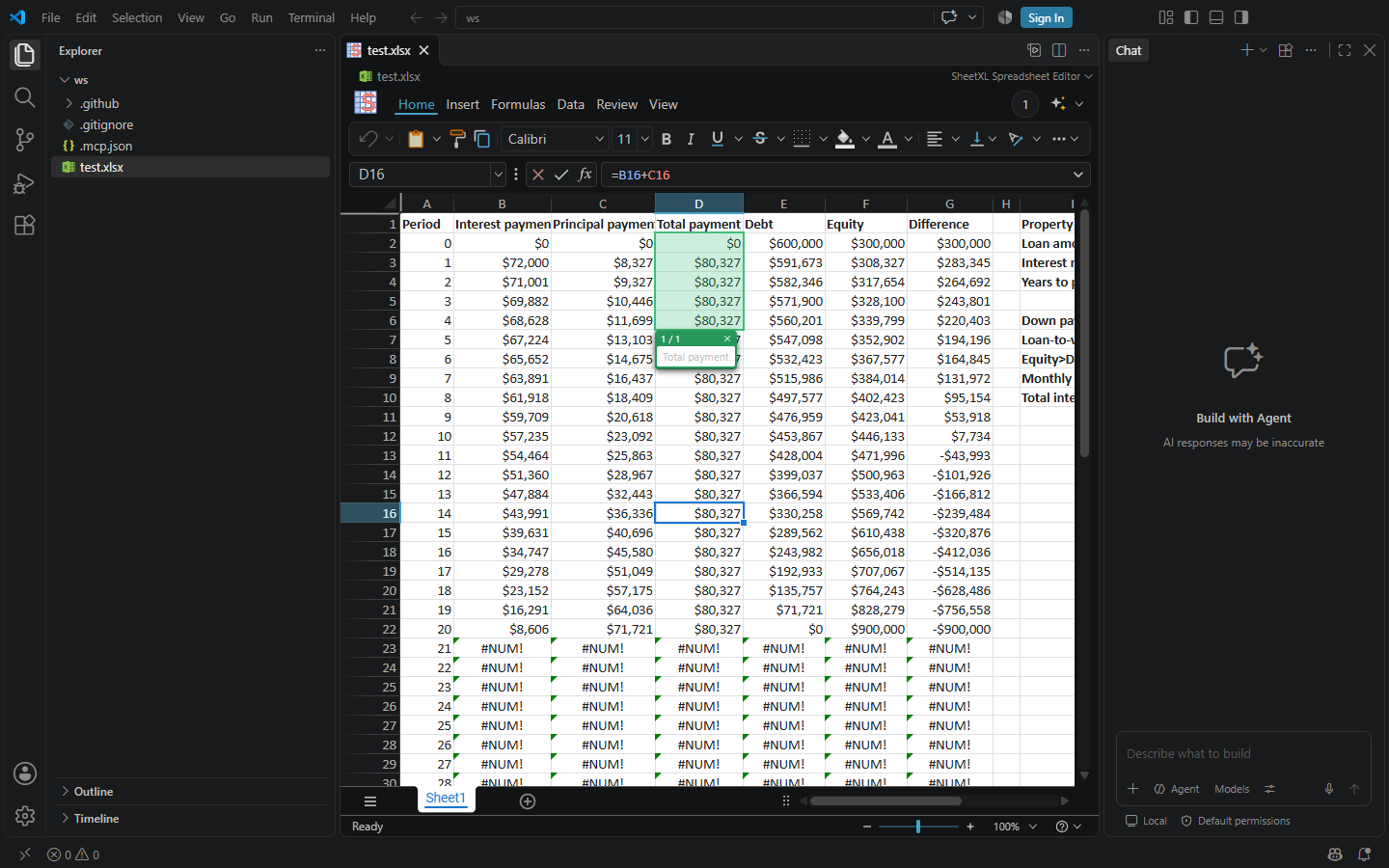
.xlsx file and it renders in the editor. Open the chat and the agent works on the same
workbook: it reads it, changes it, highlights the cells it is talking about, and asks you
questions in the grid.
Five steps, about three minutes. Each step shows what to click and, for agents or anyone who prefers a terminal, the command that does the same thing.
1. Get VS Code
Download it from code.visualstudio.com/download for Windows, macOS, or Linux, and run the installer. If you already have VS Code, skip ahead.
# Windows (winget) · macOS (Homebrew)
winget install Microsoft.VisualStudioCode
brew install --cask visual-studio-code
2. Install SheetXL
- vscode
- agent
- terminal
The button opens VS Code on the extension's page. Click Install there. If the button does
nothing, open the Extensions view (Ctrl+Shift+X / ⇧⌘X), search for SheetXL, and install it
from there, or use the
Marketplace page.
Paste this into an agent that has a terminal (Claude Code, Codex, Cursor, …):
I'd like to upgrade your spreadsheet skills with SheetXL:
code --install-extension sheetxl.sheetxl-vscode --pre-release

Then tell me how to open a spreadsheet with it and work on it together.
code --install-extension sheetxl.sheetxl-vscode --pre-release
That is the whole install. The extension brings its own spreadsheet engine and its own MCP server, and runs them with VS Code's built-in runtime. You do not need Node, npm, or a terminal.
3. Open a spreadsheet
File → Open File… and pick an .xlsx file, or drag one onto the VS Code window. It opens in
the SheetXL editor. If you opened a folder, the file list on the left works too.
code my-model.xlsx
Any .xlsx works, and so do .sxl and .csv files. Try one of your own, or download a sample from the
demos.
4. Open the chat
Click the chat icon in the title bar, or press Ctrl+Alt+I (⌃⌘I on macOS).
- GitHub Copilot is built into VS Code and finds SheetXL on its own. The free tier needs a GitHub sign-in; VS Code prompts for it the first time you open the chat. Pick Agent mode in the chat's mode selector so Copilot can use tools.
- Claude Code users install the
Claude Code extension
and open its chat instead. Add the SheetXL plugin once, in that chat:
/plugin marketplace add sheetxl/skillsthen/plugin install sheetxl@sheetxl. The plugin's MCP server finds the workbooks you have open in this window. - Any other MCP client can do the same with the server from npm,
npx -y @sheetxl/mcp. It finds this window's open workbooks on its own. The MCP guide has the setup for each client.
5. Ask
Type this into the chat:
Can you tell me about this spreadsheet?
The agent connects to SheetXL, reads the open workbook, and answers. From there, ask it to do things: "add a column that computes the margin", "find every cell that references D16", "why is row 23 showing #NUM!". When it changes something, the change is a commit you can undo. When it wants you to look at cells, they light up in the grid.
What the agent can do
- Read any range, formula, or format, and search cells.
- Change the workbook by writing TypeScript against the SheetXL API. Every change is undoable.
- Highlight ranges and ask you a question in the grid, then wait for your answer.
- Work in a sandbox copy before touching your file.
Which path is which
The extension is everything a Copilot user needs: the grid, the MCP server, and the agent's reference material, with nothing else to install. It writes nothing into your folder for this.
The Claude Code plugin (/plugin install sheetxl@sheetxl) is how Claude Code reaches the
grid, and the same plugin, or the skills install (npx -y skills add sheetxl/skills -g --all),
serves agents working in a terminal without it, as described in the
agent quickstart. The plugin's server finds whatever this window has open, so
running the extension and the plugin together is the normal setup for Claude Code.
Free during launch
The SheetXL Agent is free during launch, with no key and no sign-in. Each build runs for a period from its release date, then asks to be updated; VS Code's automatic extension updates keep you current.